Connecting Zoom to Viro
by Banjo Adesuyi
Connect Zoom and Viro will create a Zoom link for every meeting you schedule, and add it to the calendar invite automatically. It takes about two minutes.
Viro schedules meetings through Google Calendar. Zoom provides the join link only, so the event itself still lives on your Google Calendar.
Before you start
- You need a Viro account at app.meetviro.com.
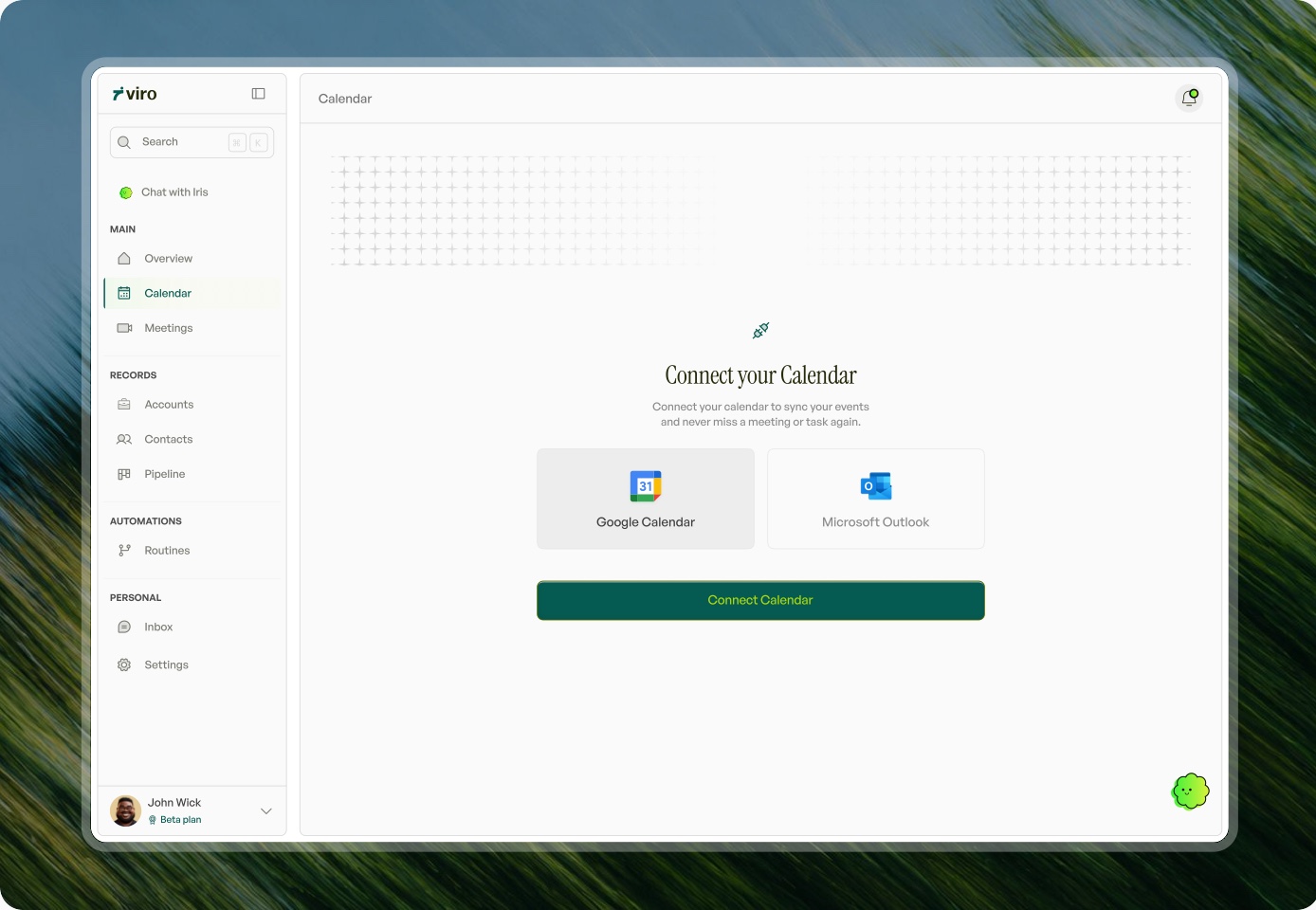
- Google Calendar must already be connected. If it isn't, go to Settings → Integrations and click “Connect” next to Google Calendar.
- Have the login for the Zoom account you want meetings created on.
Connect Zoom
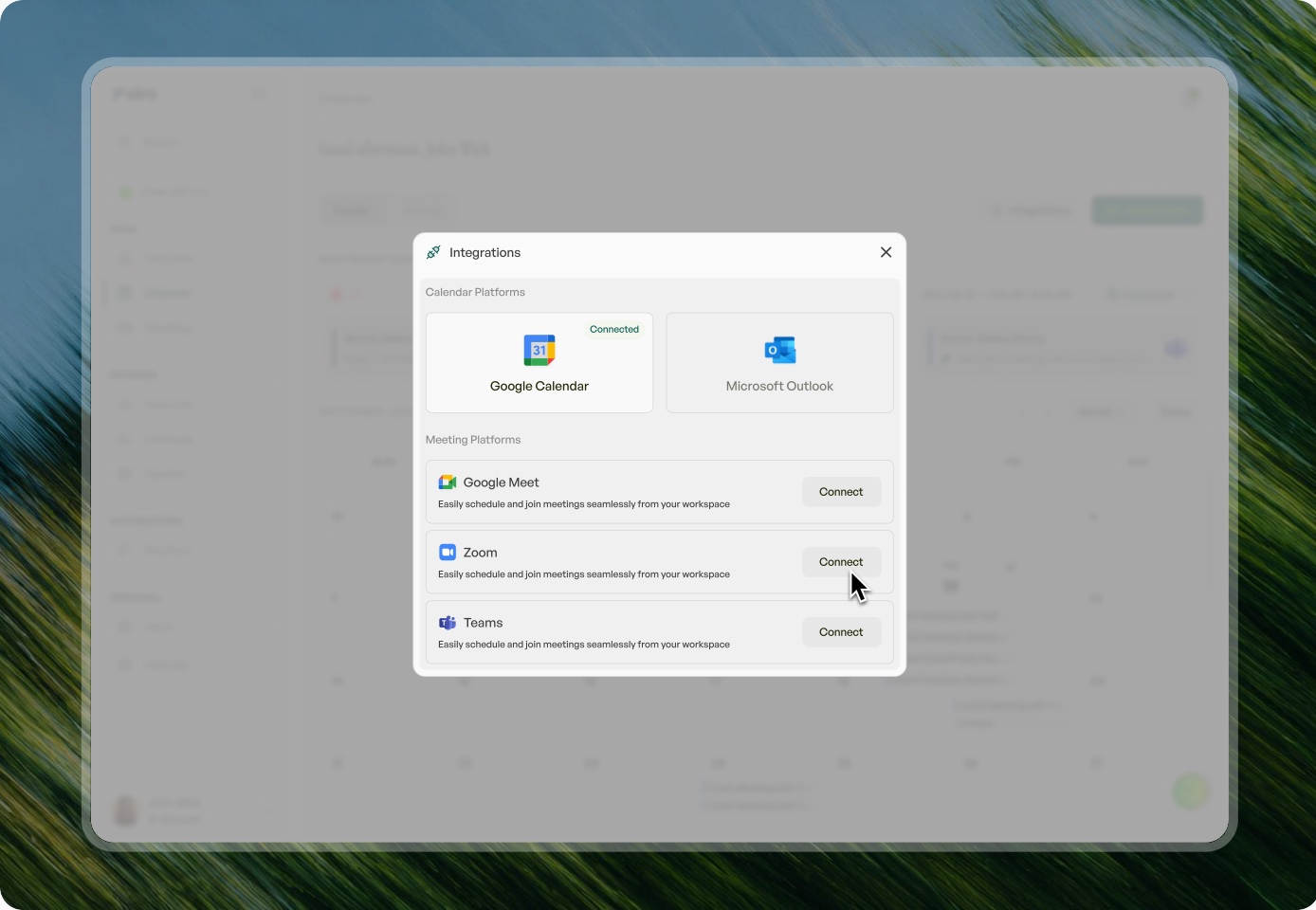
- Log in to Viro and open Settings → Integrations.
- Click Connect next to Zoom.
- Sign in to Zoom and click Authorize on the consent screen.
- You'll land back in Viro with Zoom showing as Connected.
Schedule a meeting with Zoom
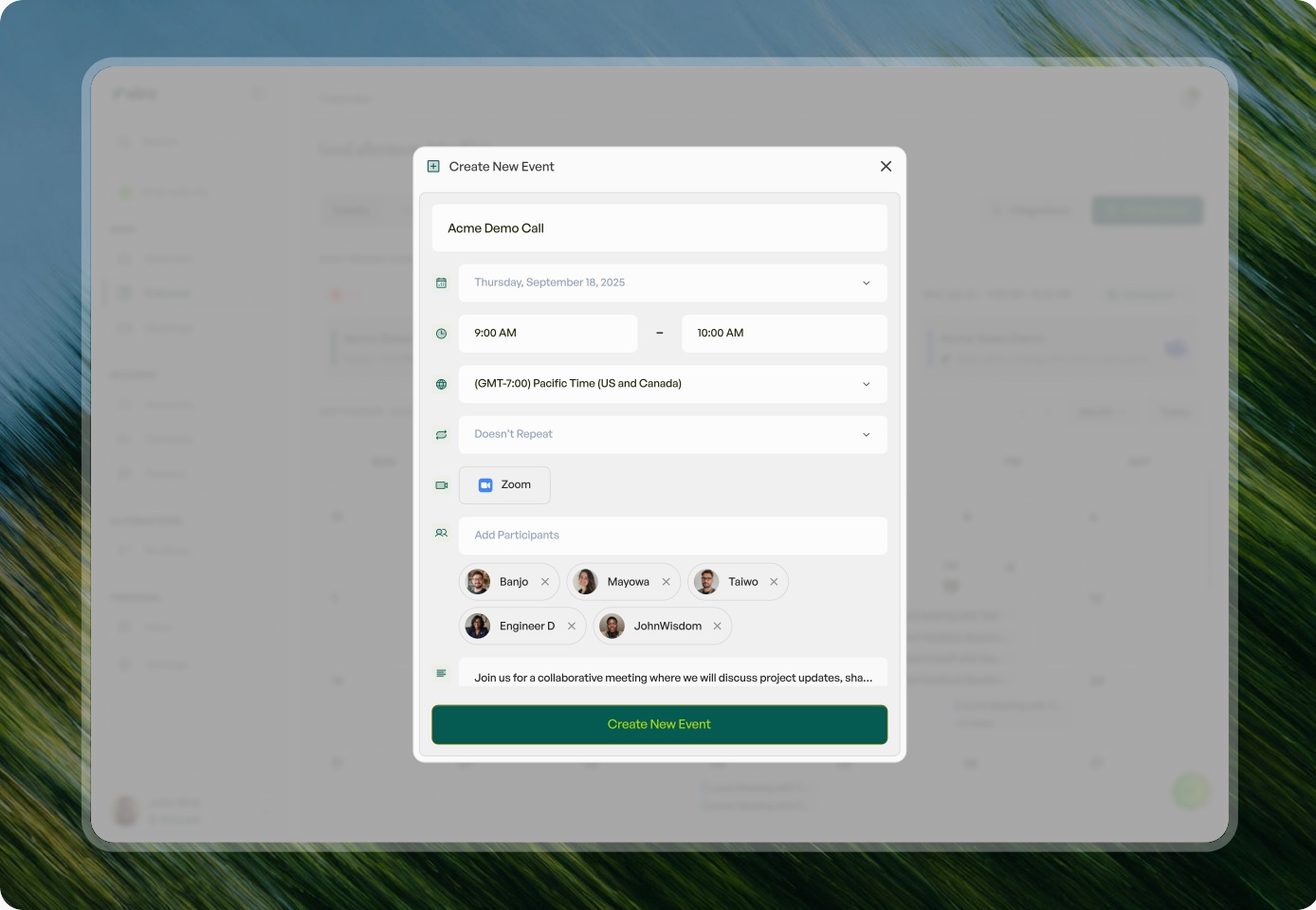
- Create or edit an event in Viro.
- Choose Zoom as the meeting platform.
- Viro creates the Zoom meeting on your account and adds the join link to the invite your attendees receive.
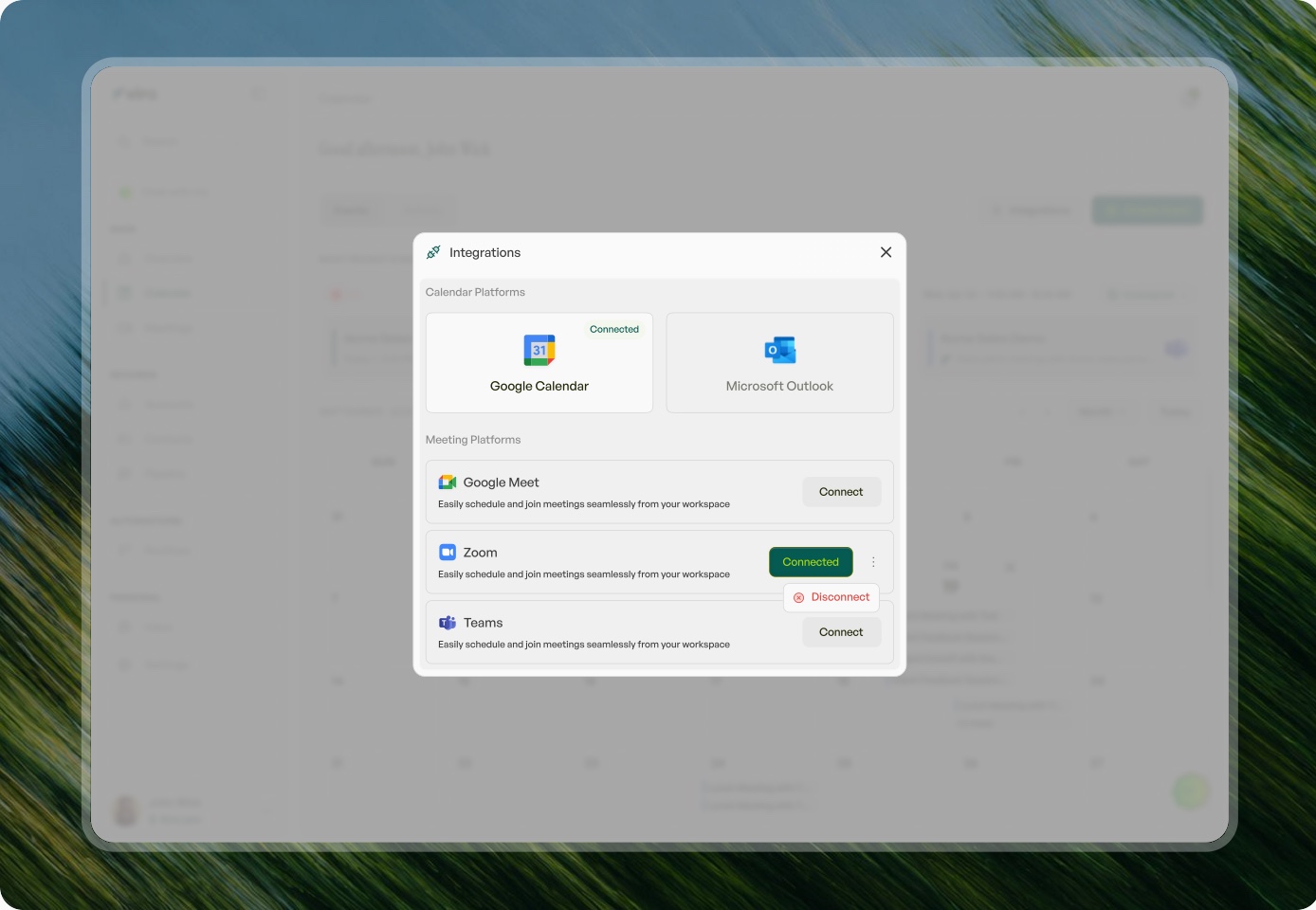
Disconnect Zoom
- Go to Settings → Integrations.
- Click Disconnect next to Zoom.
What disconnecting does
Viro deletes your stored Zoom authorization straight away and stops creating Zoom meetings until you reconnect. Meetings already created stay on your Zoom account as normal. You can also revoke access from Zoom itself, under Profile → Connected Apps in the Zoom web portal, or Manage → Installed Apps at marketplace.zoom.us.
Troubleshooting
Zoom won't connect? Check you're signing in to the right Zoom account and that Google Calendar is connected first.
My meeting has no Zoom link. Open Settings → Integrations. If Zoom shows as Disconnected, reconnect it and schedule the meeting again.
Not redirected back to Viro, or seeing an error? Email help@meetviro.com or use our contact page and we'll sort it.